Flutter lets teams ship a single codebase to both iOS and Android, but its widget-based, declarative UI changes how analytics needs to be implemented. User behavior isn’t tied to native views in the same way, which makes tracking widget interactions, navigation flows, and feature usage more complex.
This guide covers Flutter-specific analytics implementation, from tracking widget taps to handling Navigator 2.0 route changes.
Why is analytics unique in Flutter?
Flutter’s architecture changes how user behavior needs to be tracked. Because Flutter renders its own UI and controls navigation internally, analytics can’t rely on the same signals used in native iOS or Android apps. Teams need Flutter-specific instrumentation to get accurate insight.
Widget tree changes how interactions are tracked
Flutter builds its UI from a hierarchical widget tree. Every visual element, from a ‘Text’ label to a complex scroll view, is rendered by Flutter rather than native iOS or Android views. As a result, native analytics approaches that rely on view or activity lifecycles cannot automatically detect screens or interactions.
User actions often pass through multiple widget layers before reaching an interactive element. To understand which UI components users actually engage with, analytics must explicitly track widget-level interactions rather than relying on native view hierarchy signals.
Declarative UI affects when analytics events fire
Flutter uses a declarative UI model where widgets rebuild whenever the application state changes. These rebuilds are frequent and do not represent user intent.
Because of this, analytics events cannot be tied to rendering logic. User behavior must be captured from interaction callbacks and widget lifecycle moments that reflect intentional actions. Without this separation, rebuilds can easily lead to duplicated or misleading analytics data.
Navigation requires explicit screen tracking
Flutter manages navigation through its ‘Navigator’ and ‘Route’ system, not native view controllers or activities. Screen transitions are changes to the widget tree rather than native lifecycle events.
Whether you’re using Navigator 1.0 (imperative routing) or Navigator 2.0 (declarative routing), screen names and transitions aren’t automatically available to analytics tools. To understand which screens users see and how they move through the app, teams must explicitly observe route changes or page state updates.
Cross-platform behavior must be validated
Flutter’s single codebase runs across platforms with different interaction patterns. Navigation gestures, back behavior, and touch handling differ between iOS and Android, even when the UI code is identical.
Analytics must confirm that users follow the same paths and interact with the same UI elements across platforms. Without deliberate tracking, platform-specific behavior differences can remain hidden behind a shared codebase.
What to track in a Flutter app
Widget interaction events
Log meaningful widget interactions that indicate feature usage or user intent, such as:
Button taps with context: Not just "button_pressed" but "add_to_cart_button" with product details, "filter_applied" with selected filters, or "share_button" with content type.
Form field interactions: Track when users focus on ‘TextField’ widgets, which fields they skip, and where form submission fails validation.
Gesture recognizers: Log swipe directions on ‘PageView’ widgets, long-press actions on ‘ListView’ items, pinch-to-zoom gestures on images, and drag events in custom interactions.
Toggle and selection widgets: Record ‘Switch,’ ‘Checkbox,’ ‘Radio,’ and ‘DropdownButton’ state changes to understand preference patterns.
Screen and view transitions
Flutter's navigation patterns require explicit tracking:
Navigator 1.0 transitions:
Named route navigation: Track which routes users navigate to and the navigation path (push vs. pushReplacement vs. pushAndRemoveUntil).
Modal routes: Log when ‘showDialog,’ ‘showBottomSheet,’ or ‘showModalBottomSheet’ opens overlays, and whether users dismiss or complete the action.
Tab navigation: In ‘TabBarView’ or ‘BottomNavigationBar,’ track tab switches to identify popular sections.
Navigator 2.0 transitions:
Page stack changes: Log when the declarative page list updates, including which pages were added or removed from the stack.
Deep link handling: Track when ‘RouteInformationParser’ processes URLs to navigate directly to screens.
Back button behavior: Distinguish between Android hardware back, iOS swipe-back, and in-app back button navigation.
Feature usage patterns
Identify which Flutter-specific features drive engagement:
Custom widget usage: If you've built custom reusable widgets (charts, media players, interactive tutorials), track interaction frequency and completion rates.
Platform adaptations: Flutter's ‘Platform.isIOS’ and ‘Platform.isAndroid’ let you show different widgets per platform. Log which variants users interact with to validate design decisions.
Animation and transition completions: Track whether users watch animated tutorials, complete AnimatedList scroll-throughs, or skip transitions.
Onboarding flow progression
Map exact steps through onboarding screens:
PageView swipes: Log which onboarding slides users view, in which order, and where they exit.
Skip button taps: Track if users skip onboarding entirely or jump to specific steps.
Permission requests: Log ‘permission_handler’ prompts (camera, location, notifications) and whether users grant or deny access.
Tutorial completions: Track interactive tutorial widget completions to measure onboarding effectiveness.
Funnel-critical actions
Instrument conversion paths from discovery to completion:
Product discovery to purchase: Track product list views, product detail views, add-to-cart actions, checkout initiation, payment method selection, and order confirmation.
Content engagement to sharing: log article opens, scroll depth (using ‘ScrollController’), media playback duration, share button taps, and successful shares.
Search to result interaction: Track search query submissions, result list views, result item taps, and actions taken after viewing results.
These categories capture Flutter-specific user behavior. Avoid generic mobile KPIs like "sessions" and "DAU" that apply to any app—focus on widget interactions, navigation patterns, and feature usage that reveal how users experience your Flutter UI.
Analytics planning for Flutter teams
Follow these steps to plan analytics before adding tracking code to avoid incomplete data.
Define critical user journeys: Identify the 3–5 most important flows in your app, such as onboarding to activation or signup to first transaction. Track widget interactions along these paths first instead of logging every possible action.
Set naming conventions early: Agree on event names and parameter keys before implementation. Use consistent formats like ‘object_action’ and standardize keys such as ‘product_id’ to keep analytics clean and queryable.
Account for platform differences: User behavior can differ between iOS and Android, especially around gestures and navigation. Structure events so they can be segmented by platform from the start to compare behavior accurately.
Protect sensitive user data: Identify widgets that handle sensitive input, such as passwords or payments. Exclude these from visual capture or automatic tracking before releasing to production.
Document the tracking plan: Maintain a shared list of events, parameters, and trigger conditions. This keeps tracking consistent as the app evolves and new team members contribute.
How to implement analytics in Flutter
The following code samples are simplified examples intended to illustrate key concepts. They are not production‑ready and must be adapted to your app’s architecture, initialization flow, privacy/consent requirements, and the latest provider documentation.
Choose an analytics provider and initialize the SDK Select a provider that supports Flutter's cross-platform architecture. Options include UXCam (behavioral analytics with session replay context), Firebase Analytics (free, Google-integrated), Mixpanel (advanced segmentation), or Amplitude (behavioral cohorts).
Initialize the SDK in ‘main.dart’ before running your app:
Note: This snippet is for illustration only. In a real app, make sure you complete the full provider setup (for example, Firebase initialization, platform configuration, environment handling, and consent logic) following the official SDK documentation
For providers requiring platform-specific configuration, add Android ‘google-services.json’ or iOS ‘GoogleService-Info.plist’ files as documented.
Structure meaningful event names and parameters Use a consistent naming convention for events and parameters. For example; // Good: descriptive action with context
analyticsService.logEvent('product_added_to_cart', parameters: {
'product_id': product.id,
'product_name': product.name,
'category': product.category,
'price': product.price,
'currency': 'USD',
});
// Bad: vague event name, missing context
analyticsService.logEvent('button_click', parameters: {
'id': product.id,
}); Note: Adjust event names, parameters, and validation to match your domain model and analytics schema. Always validate limits, reserved names, and data types against your analytics provider’s current guidelines. Naming conventions:
Use ‘snake_case’ for consistency across platforms
Start with the object (product_, user_, checkout_)
Follow with the action (added, viewed, completed)
Include the widget type when relevant (_button, _card, _tile)
Parameter rules:
Keep parameter keys consistent across related events
Use primitive types (strings, numbers, booleans), not complex objects
Limit parameters to 5-10 per event for query performance
Include a timestamp for client-side events to detect delayed transmission
Implement screen tracking with NavigatorObserver Create a custom ‘NavigatorObserver’ to automatically log screen views:
Add the observer to your ‘MaterialApp’:
Note: This observer implementation is intentionally minimal. In production, you may need additional logic for nested navigators, routing libraries, deep links, and custom screen naming conventions based on your app’s navigation architecture.For Navigator 2.0, implement screen tracking in your ‘RouterDelegate’ by detecting page list changes and extracting screen names from page keys.
Avoid duplicate events with proper lifecycle management Flutter widgets rebuild frequently. Place analytics calls in callbacks, not in ‘build()’:
For StatelessWidgets, use ‘WidgetsBinding.instance.addPostFrameCallback’ to log events after the first frame renders:
Test analytics across iOS and Android builds Analytics implementations must work identically on both platforms:
Run debug builds on physical devices: Emulators may not fire platform-specific events correctly. Test on real iOS and Android hardware.
Verify event transmission: Use provider debug views to confirm events appear with correct parameters on both platforms.
Check platform-specific gestures: Test that swipe-to-go-back (iOS) and the hardware back button (Android) both log navigation events.
Validate timing: Ensure events fire at the same logical time on both platforms. iOS may process gestures differently from Android.
Maintain naming consistency through centralized constants Define event names and parameter keys in a central location:
This prevents typos and makes refactoring event names straightforward. Your IDE will autocomplete event names and catch errors at compile time.
UXCam for Flutter analytics
UXCam provides Flutter-specific analytics through automatic widget interaction capture, screen transition tracking, and gesture event recording. The UXCam Flutter SDK requires minimal setup: initialize with your app key, and UXCam begins recording user sessions without manual instrumentation for every widget.


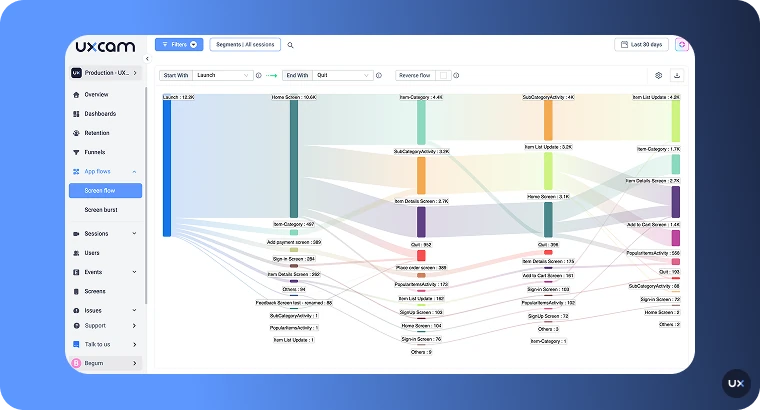
Key benefits for Flutter apps:
Auto screen capture: Automatically detects screen changes without implementing NavigatorObserver for every route
Widget interaction tracking: Captures tap coordinates, scroll behavior in ‘ListView/PageView,’ and gesture events
Visual context: Session replay shows exactly what users see and do, revealing issues invisible in event data alone
User flow analysis: Filter sessions by analytics events to watch affected users. If checkout drops off after payment changes, replay those specific sessions
Heatmaps: Tap heatmaps overlay data on Flutter screens, showing which widgets attract attention
By combining event tracking with session replay, Flutter teams can diagnose issues faster. UXCam shows what happened through events and reveals why through visual session context, helping teams resolve problems more efficiently. For integration details, see UXCam's Flutter developer guide.
Example: Flutter app using UXCam for analytics
Recora is a Flutter-based health app used by patients recovering from heart procedures. After signing up, users receive a recovery kit that includes a tablet and health-monitoring devices. Through the app, patients join live coaching sessions, track vitals, and follow recovery plans alongside their care providers.


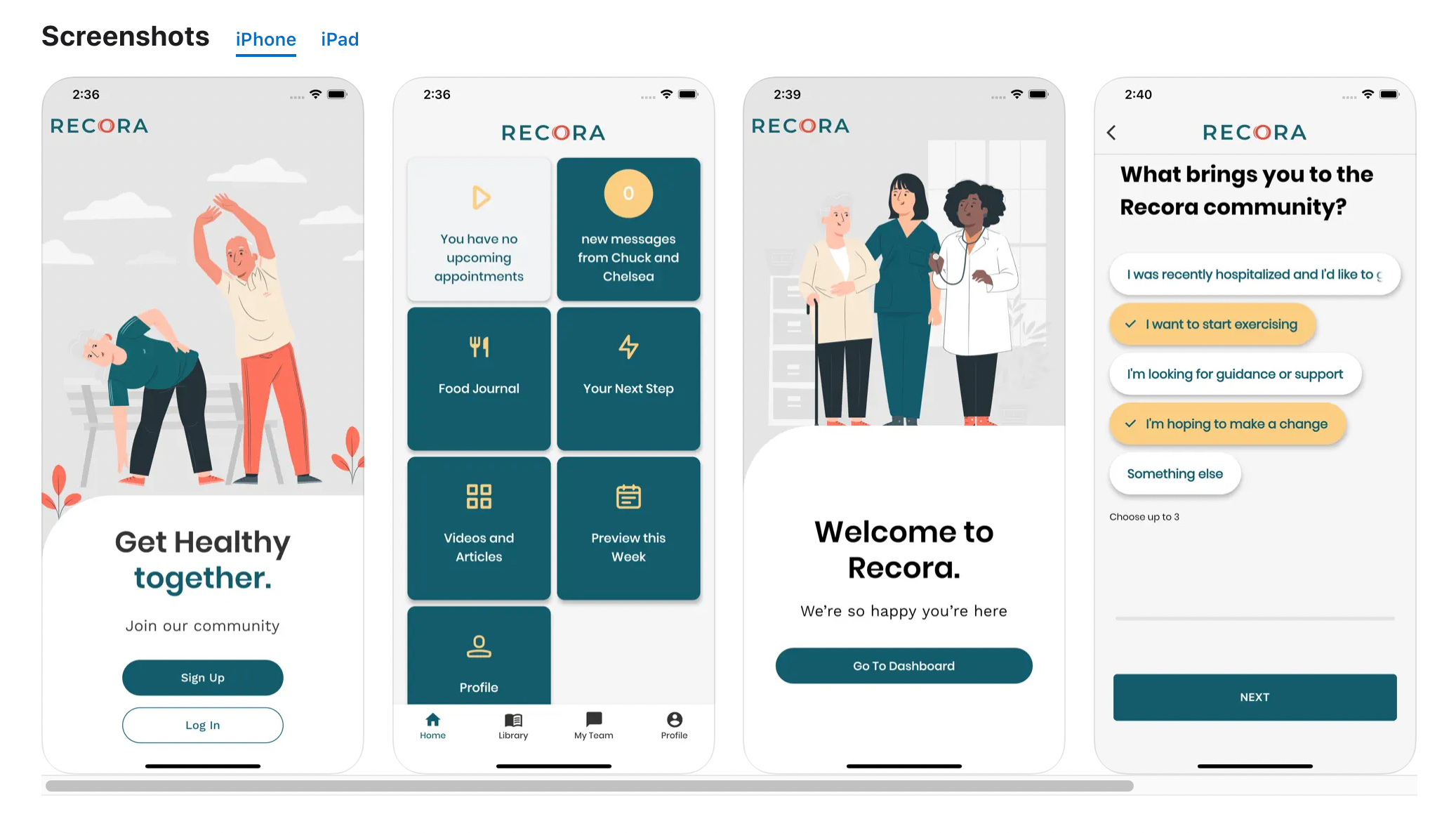
The team started receiving complaints that the “Join session” button wasn’t working, especially from older users.
Basic analytics showed that users attempted to join sessions, but didn’t explain why they failed. Using UXCam, the team reviewed heatmaps and session replays and quickly spotted the issue: many users were pressing and holding the button instead of tapping it, like a physical remote. That gesture didn’t trigger the event, so sessions never started.
The team updated the Flutter UI to support both tap and press-and-hold gestures. The fix was simple, but the impact was immediate:
42% fewer support tickets related to joining sessions
One-third fewer devices returned as “faulty”
30% drop in rage taps
For Recora, combining event data with session context made the difference. It helped them understand real widget-level behavior in Flutter and fix a critical issue that traditional analytics alone couldn’t explain.
Read more about Recora’s experience in this case study.
I really felt like we were being listened to, we moved through contracting so quickly. It was one of the easiest platforms we’ve ever had to implement.

- Emma Cancelliere Stanton, Head of Product, Recora
Common Flutter analytics pitfalls
Flutter’s architecture makes analytics easy to get wrong if you rely on patterns from native mobile development. These are common mistakes Flutter teams run into when setting up analytics.
Logging events in build()
Widgets rebuild often in Flutter. Logging analytics inside the ‘build()’ method causes duplicate events and inflated counts. User behavior should be tracked from gesture callbacks or lifecycle methods that represent intentional actions.
Relying on native auto-tracking
Native analytics SDKs depend on iOS and Android view lifecycles. Flutter bypasses these layers, so screen views and interactions are not captured automatically. Without explicit widget and navigation tracking, key user behavior is missed.
Missing screen names in navigation
If routes are not named or page keys are not tracked, analytics can record navigation without identifying which screen the user viewed. This is especially common when using Navigator 2.0 with declarative routing.
Tracking widgets without stable identifiers
Widgets of the same type rebuild frequently and can appear in multiple places. Without stable identifiers, analytics cannot distinguish which instance a user interacted with, leading to ambiguous data.
Assuming identical behavior across platforms
Flutter shares UI code, but user behavior can differ between iOS and Android. Back navigation, gestures, and interaction patterns vary by platform. Analytics must validate that flows work as intended on both.
Get clearer Flutter analytics with UXCam
Because of Flutter’s widget tree, declarative UI, and custom navigation, meaningful insight depends on tracking the right interactions and understanding how users actually move through your app across platforms.
UXCam helps Flutter teams connect event data to real user behavior by adding visual context to analytics. You can see how users interact with widgets, how flows break down, and where friction appears, without relying on platform-native assumptions or duplicating effort across iOS and Android.
If you want more confidence in how users experience your Flutter app and faster clarity on what’s happening inside key flows, get started with UXCam and turn your analytics into insights you can act on.
FAQ
FAQ
Related articles
Top mobile app analytics tools
Mobile app heatmap tool for Flutter


Related articles


Flutter
Herramienta de grabación de sesión para Flutter: UXCam
Optimiza el rendimiento de tu aplicación Flutter con la herramienta de grabación y sesión replay de UXCam. Fácil integración, funciones optimizadas y soporte...

Jonas Kurzweg
Product Analytics Expert
Gravação de Sessões
Replay e Gravação de Sessões no Flutter para Aplicativos: UXCam
Otimize o desempenho do seu aplicativo Flutter com a ferramenta de gravação e replay de sessões do UXCam. Integração fácil, recursos otimizados e suporte...
Jonas Kurzweg
Product Analytics Expert


Flutter
Flutter Mobile App Analytics: A Practical Implementation Guide
Mobile app analytics for Flutter. Easy integration, detailed insights, and robust...
Jonas Kurzweg
Product Analytics Expert
What’s UXCam?